# The Git Command That Saved My Sanity on a Massive Enterprise Web Components Project
Table of Contents
Imagine you’re cooking a complex, multi-course meal. You’re in the middle of chopping veggies for a stir-fry (Feature A), but suddenly, the soup on the stove starts boiling over (an urgent bug).
Normally in Git, you’d have to pack up all your half-chopped veggies, put them in a container, clean the cutting board (this is git stash), fix the soup, and then unpack your veggies to start over.
Git Worktree gives you a second, fully equipped kitchen counter right next to the first one. You can leave your veggies exactly where they are, step over to the new counter, fix the soup, and step right back without messing up your original setup.
The Monorepo Meltdown
I’ve been an engineer for over two decades, and I thought I had my Git workflow down to a science. git stash, git checkout -b, git pop—rinse and repeat.
But recently, I joined a massive enterprise project for a Fortune 500 company. We are building a highly customized, internal design system using Web Components. Because these components serve dozens of different applications across the company, our repository is an absolute beast. We are talking about a complex monorepo with heavy build steps, complex local orchestration, and a local dev server that takes a solid two minutes to fully spin up and cache.
A few weeks ago, I was deep in the zone. I was refactoring the shadow DOM styling on a highly complex DataGrid component. I had about 15 uncommitted files, half-broken layouts, and console logs scattered everywhere.
Then, the Slack ping arrived.
A critical production bug was found in the Button component. It was breaking the checkout funnel for a major product line. I needed to switch to the main branch, reproduce the bug, fix it, and push a hotfix. Immediately.
In the past, my ritual would look like this:
git stashmy half-brokenDataGridchanges.git checkout main- Wait for the build tools to re-index the massive dependency tree.
- Fix the
Button. git checkout feature/datagridgit stash pop- Realize my local environment cache is completely corrupted because of the sudden branch hop, delete
node_modules, runnpm install, and waste 15 minutes getting back to where I was.
This time, a senior architect on my team saw me sweating and said three words that changed my workflow forever: “Use Git Worktree.”
What is Git Worktree?
By default, a Git repository has one repository history (the hidden .git folder) and one working directory (the actual folders and files you edit).
git worktree allows you to attach multiple working directories to a single repository history. This means you can have multiple branches checked out at the exact same time in entirely different folders on your computer.
Instead of flipping my single workspace upside down, I could leave my broken DataGrid code exactly as it was, and spin up a parallel universe for the hotfix.
Why This is a Game-Changer for Enterprise Frontend Devs
If you are working on a simple landing page, git stash is fine. But when you are dealing with complex Web Components or heavy enterprise frameworks, Worktree is a lifesaver for three distinct reasons:
1. No More Context-Switching Whiplash
When I created a new worktree for my hotfix, my DataGrid code stayed perfectly intact in its own IDE window. I didn’t have to risk losing my train of thought, and more importantly, I didn’t have to risk losing code to a messy stash conflict.
2. Independent Build Environments
Because the new worktree lives in a separate folder, it can have its own local build state. I could run the dev server for the Button hotfix without killing the dev server or corrupting the cache of my DataGrid environment.
3. Effortless Side-by-Side Code Reviews
Later that day, a teammate asked for a code review on a new Modal component. Instead of pausing my work, I just spun up a third worktree. I had my DataGrid on my left monitor, and their Modal component running live on my right monitor. I could literally compare our web component lifecycles side-by-side in real-time.
The Quick Commands That Saved My Day
The learning curve is virtually non-existent. Here is the exact workflow I used:
- Create a parallel workspace for the hotfix:
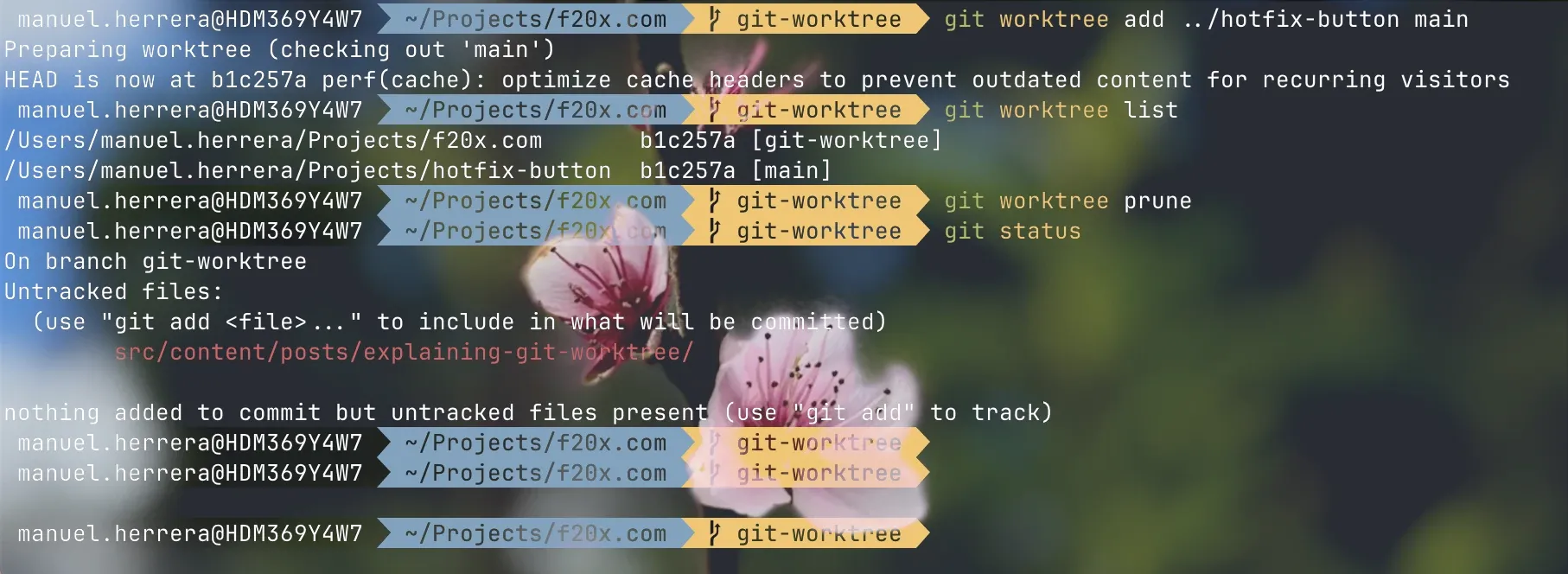
git worktree add ../hotfix-button mainThis instantly created a new folder named hotfix-button one level up from my project, pre-loaded with a clean copy of the main branch.
2. Fix the bug:
I opened that new folder in a separate VS Code window, fixed the Button bug, committed, and pushed to GitHub.
3. See active workspaces:
git worktree listThis reminded me that I had two active folders linked to the same underlying Git history.
4. Clean up:
Once the hotfix PR was approved, I simply deleted the hotfix-button folder and ran:
git worktree pruneI stepped back into my original VS Code window, and my broken DataGrid was exactly how I left it. No stashes to pop, no caches to rebuild, no time wasted.
If you are still wrestling with git stash in large-scale projects, do yourself a favor and add git worktree to your toolbelt. Your sanity will thank you.
As an experienced dev, I’m always looking to optimize my daily friction points. What does your current emergency-bug workflow look like, and could worktrees fit into your team’s setup?